
Create Web Page Without Coding
Create web pages using just your Internet Browser.
Fast Web Page Creation
Simple Online Web Page creator
Simple Web Page publishing
Create web pages using just your Internet Browser.
Simple Online Web Page creator
Simple Web Page publishing

The Checklist document below includes a Web Page Checklist that can be used for each web page.
Images for web pages should be smaller for quicker loading web pages. Downsize any images larger than 1920 pixels in width.
Some image editing features are built within WordPress.
| Web Page Image Addition Process | Image |
|---|---|
| From the Edit Page screen Click on the position where you would like the image Click Add Media Button Click Select Files button or select Media Library. Select your web page image Click Insert Into Page button Typical image sizes leaderboard (728x90), small rectangle (180x150) small square (200x200), square (250x250) medium rectangle (300x250), large rectangle (336x280) half page (300x600), portrait (300x1050). |
 |
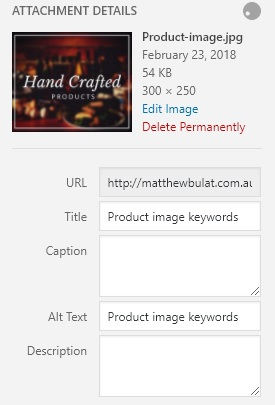
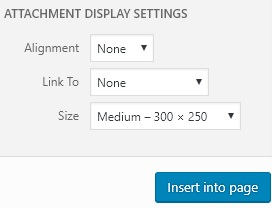
| Image Media Library - New Image Attachment Details Remove any hyphens or underscores in the title. Use your keywords in important image titles. Copy the Title into the Alt Text textbox. Optionally set the image alignment. Optionally set the image display size. If you want to edit the image click Edit Image (see below). Click Insert Into Page button |
|
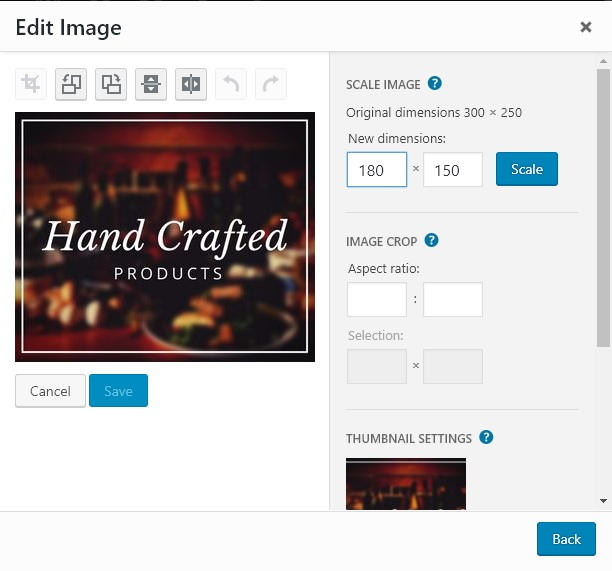
| Edit Image editor Change the width of the image to the size you need. Enter the new smaller width in the first scale textbox. The height will auto calculate. Click Scale button. There are features to crop, flip or rotate images. Click Save button. Click Back button. Click Insert Into Page button. The image will appear at the cursors last position. If you click on the image you can align, delete or edit the image. Once an image is in the library it can be used for multiple web pages. |
 |
The Checklist document below includes a Web Page Checklist that can be used for each web page including text and images. Next is Digital Marketing Digital Marketing your new web page.